
September 23, 2026
How to Boost Tab Volume Above 100% in Chrome
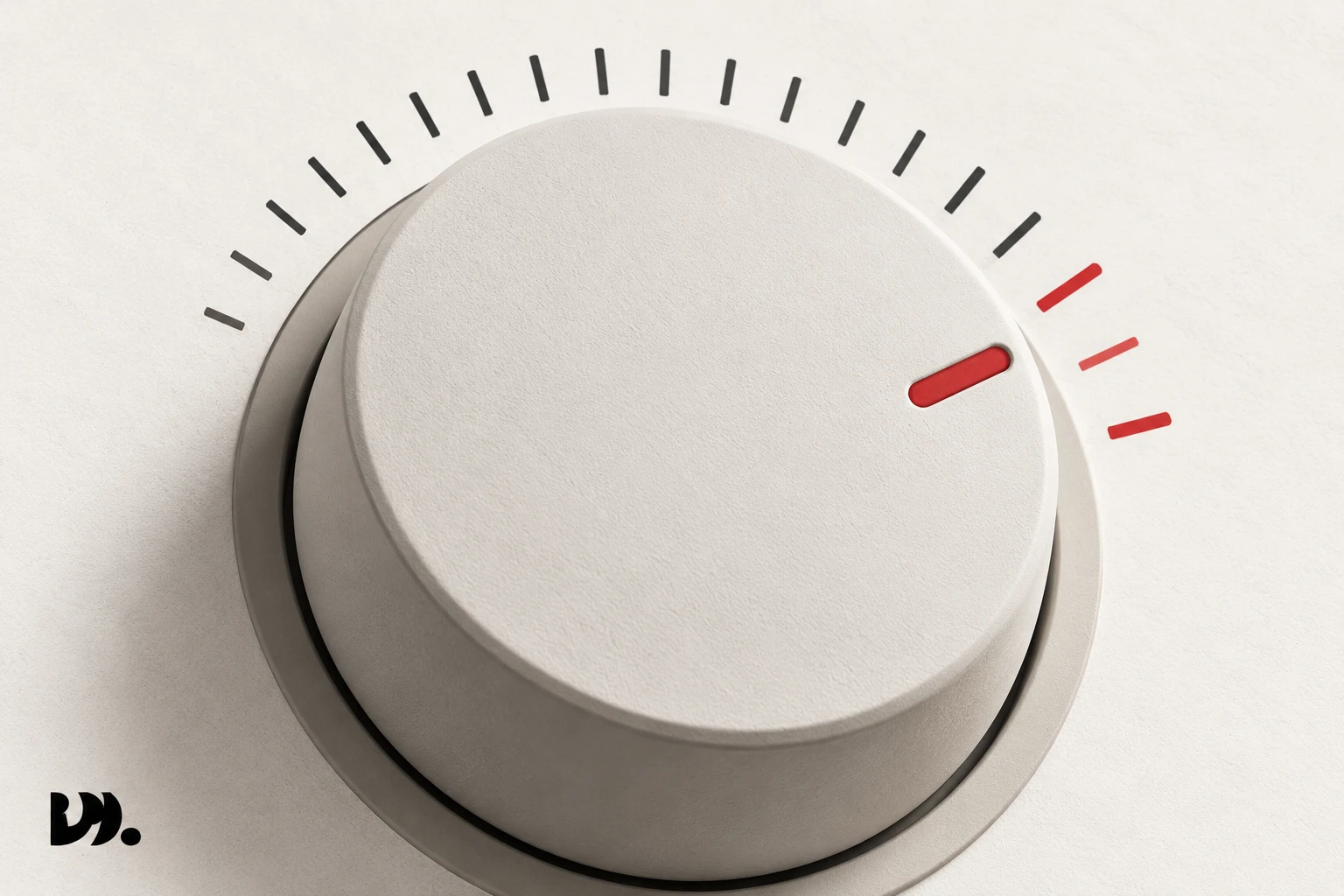
Chrome has no built-in way to boost a tab’s volume past 100%. Modulate adds that by amplifying the tab’s audio in the browser, with presets up to 600%.
Why some tabs are just too quiet
Not every quiet tab is a settings problem. Plenty of audio is quiet at the source: a low-bitrate upload, a video mixed with the dialogue too far under the music, a conference call where one participant’s microphone is barely picking up their voice. Turning your system volume all the way up doesn’t fix this, because it turns up everything equally, including whatever else is playing, and you’re still stuck if the tab itself is the quiet one in a mix of tabs. What’s actually needed is a way to make that one tab louder than 100% while leaving everything else at its normal level, and Chrome’s own audio controls simply stop at 100%.
Laptop speakers make this worse. Even a video mixed at a reasonable level can sound thin and hard to hear on built-in speakers with a low maximum output, and pushing your system volume to its ceiling still isn’t enough headroom for some content. Headphones with low sensitivity run into the same wall. In both cases the limiting factor isn’t your hardware’s volume knob, it’s that the tab’s own audio signal never gets amplified past its recorded level, no matter how high you turn everything around it.
How the boost presets work
Modulate handles this by amplifying a tab’s audio signal above its native level, tab by tab. The Max Boost setting offers a fixed set of presets: 150%, 200%, 300%, 400%, 500%, and 600%. Max Boost sets how high any tab’s slider can go: it’s a single ceiling that applies across the whole browser at once, not a separate limit per tab. The presets are deliberately fixed steps rather than a free-text field. That’s a safety choice as much as a design one: a slider you can drag to an arbitrary number is also a slider you can bump to a number loud enough to hurt your ears or blow a speaker, and fixed presets make that much harder to do by accident.
Each tab’s volume level within that shared ceiling is still independent, the same way its mute state is, so one tab can sit at 300% while another stays at 100%. A quiet podcast can run at 400% while a normal-volume video sits untouched at 100% in the tab next to it, both within the same Max Boost range. There’s also a Boost All shortcut for pushing every currently playing tab up together, useful when several tabs are all quiet for the same reason, like a batch of recordings from the same low-volume source.
Start low and raise the ceiling gradually
Boost is amplification, not restoration, and amplification has a ceiling of its own. Pushing a tab past 200 or 300% can start to introduce audible distortion, especially if the source audio was already close to its own loudness limit. A quiet podcast will usually tolerate a bigger boost cleanly than a video that was already mixed near maximum. The practical approach is to raise the Max Boost preset one step at a time, starting around 150 or 200%, and listen for distortion before going further. There’s no universal number that works for every tab, since it depends entirely on how quiet or how compressed the original audio already is.
If a tab still sounds thin even at a high boost level, the issue is usually the balance between voice and background noise rather than overall loudness. That’s a separate control from boost: Modulate’s Voice EQ adjusts frequencies around 2 kHz by -12 to +12 dB, which can make a quiet speaker easier to hear without pushing the whole tab louder. Bass EQ works the same way at 200 Hz, for tabs where the problem is thin, tinny audio rather than a volume that’s too low overall.
Where to find every control
Boost is one control among several. See the full control set on the home page.